
Templates Library
Update Date: 11/24/2025
What are templates for?
Templates are ideaShell’s AI generation feature that creates the content you need based on your requests, such as to-do lists, summaries, mind maps, flashcards, and even event planning. Beyond the content itself, they also provide better display formats and more convenient and rich sharing options, making it easy for you to save as Word, PDF, and more, so the content can truly be integrated into your workflow.
Currently, we have many preset templates in the template library for you to use directly, and more will be added continuously in the future. If you have more personalized needs, you can customize templates to output content that better fits your requirements.
How to customize templates?
Customizing templates is actually very simple. If you’ve encountered AI, you’ve probably heard terms like “spell,” “command,” or “prompt”—these are instructions that tell the AI what you want it to generate. For example:
It’s like you say a short piece of copy:
“It snowed today, really heavily, the kind where the mountains turn white. Piggy, doggy, and chicken left lots of footprints in the snow, which was very interesting and all looked especially beautiful. Winter is really nice.”
Then you ask the AI to make it more artistic, and the AI’s result might be:
“Today, it snowed. Vast blankets of snow covered the mountains, dyeing the peaks a soft white jade. In the silence, piggy, doggy, and chicken footprints crisscrossed the snow, deep and shallow, like nature’s brushstrokes writing a silent poem. The cold wind brushed the face, blending winter’s chill with the purity of snow, cleansing the heart with clarity. Winter is truly beautiful.”
See? It’s that simple. ideaShell’s template cards not only help you polish your copy but also assist with analysis, document translation, report writing, and most other text-related needs.
Next, let’s see how to create a custom template in ideaShell, with AI assisting you throughout the process.
Custom Template Creation Tutorial
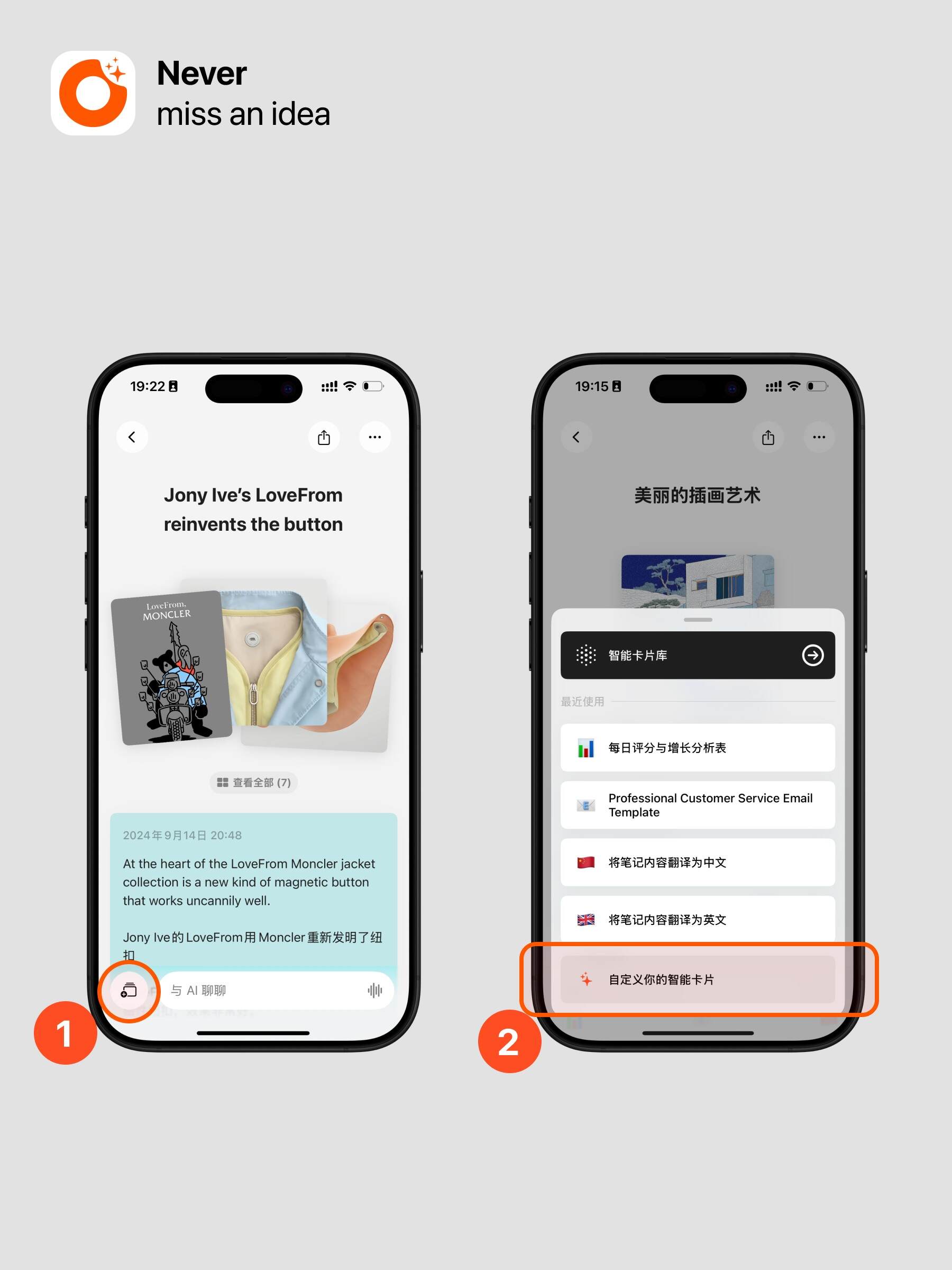
-
Click the button at the bottom left of the note
-
Click “Customize your template”
-
Enter your request (i.e., what you want the template to output). Tip: Click the voice button at the bottom right of the input box for easier input!
-
After entering, click “Use AI to optimize.” AI will refine and perfect your input so the template output better matches your needs.
-
The input box will display the AI-optimized command. Click the top right save button to generate the template content you need;
If you’re not satisfied with the AI-optimized command, you can click “Want further improvements? Let AI help you” at the bottom.
By chatting with AI, just tell it your needs directly, and AI will further optimize and generate a new command. Once confirmed, click save.
All your previously customized templates will be saved and synced. In the future, we will allow you to share your especially great templates so everyone can use them.