Become the Fastest Recording Tool
Update Date: 11/24/2025
1. Forms of Recording
Currently, ideaShell supports the following forms of recording: audio (supports importing audio, internal audio recording), text, web clipping, hand drawing, and document scanning (temporarily only supported on iOS);
long audio (longer than 10 minutes), web pages, and images are saved as attachments.
🎙️ Voice Recording
There is no limit on recording length, but single transcription recordings have limits (Premium users can transcribe up to 5 hours at once, Free Plan users up to 1 hour).
For recordings longer than 10 minutes, you need to manually click the transcription button to start AI transcription. The recording interface supports two theme options.
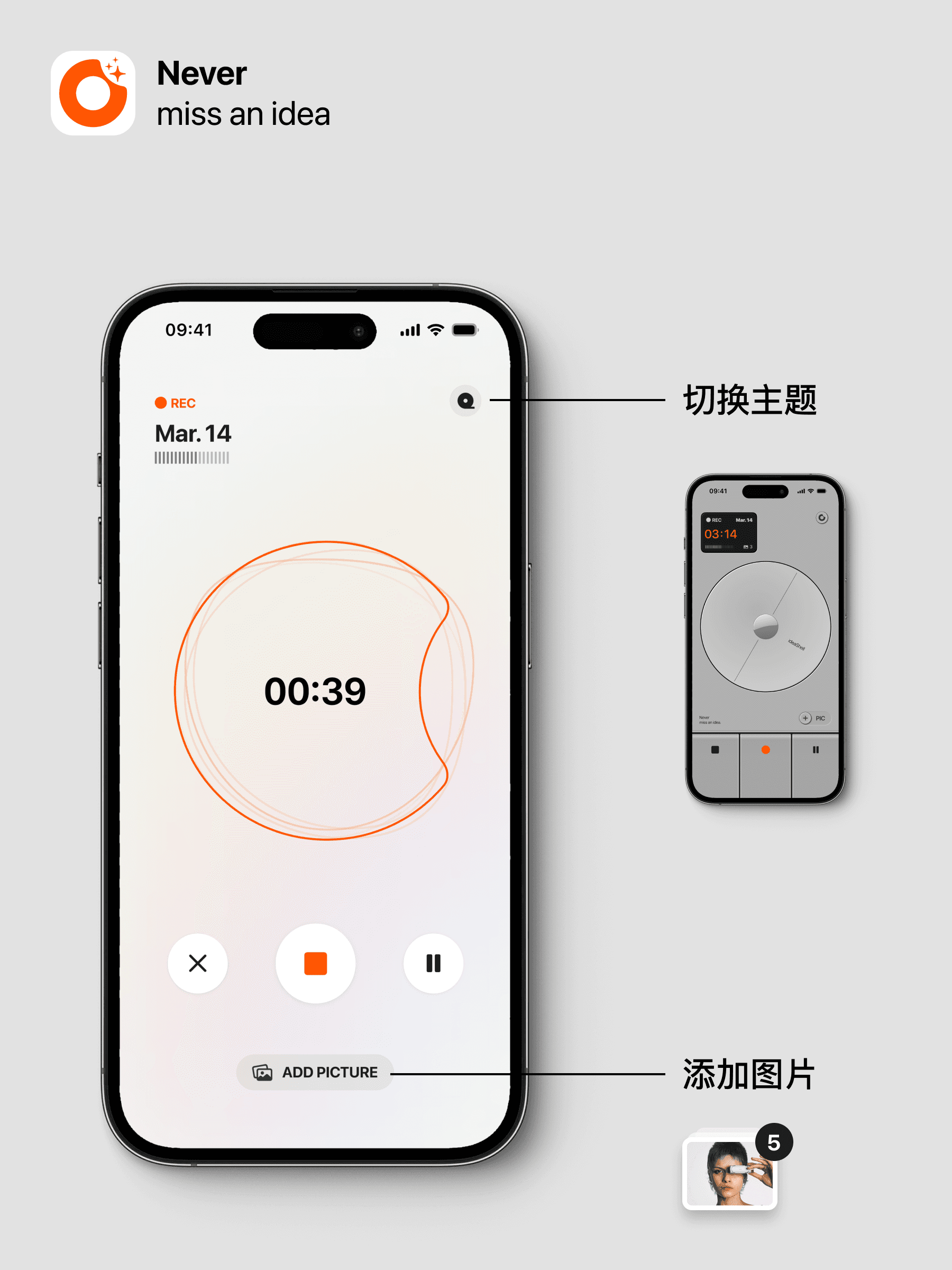
After recording, AI will automatically transcribe and optimize the content by removing filler words and unnecessary interjections, and perform layout optimization such as correct punctuation and paragraphing to ensure the content is easier to read and better expressed. We do not polish or rewrite your original content, ensuring the accuracy of your records. Of course, if you want to make changes, you can directly select the rewriting style you want and customize the rewrite content in the smart card’s feature options.
During recording, you can add image attachments to enrich your content and better express your ideas, such as the source of your idea.
⌨️ Text Recording
The traditional recording method through keyboard text input. You can add images and tags during the process. After saving, AI will automatically process the final text content by adding titles, summaries, and tags, but it will not modify any of your text.
2. Multiple Ways to Quickly Start Recording
To help you quickly start recording and never miss any inspiration or idea, we have designed many quick recording methods in the product as follows:
Regular Start
On the homepage, you can directly click to start recording or text input.
Start via Widget
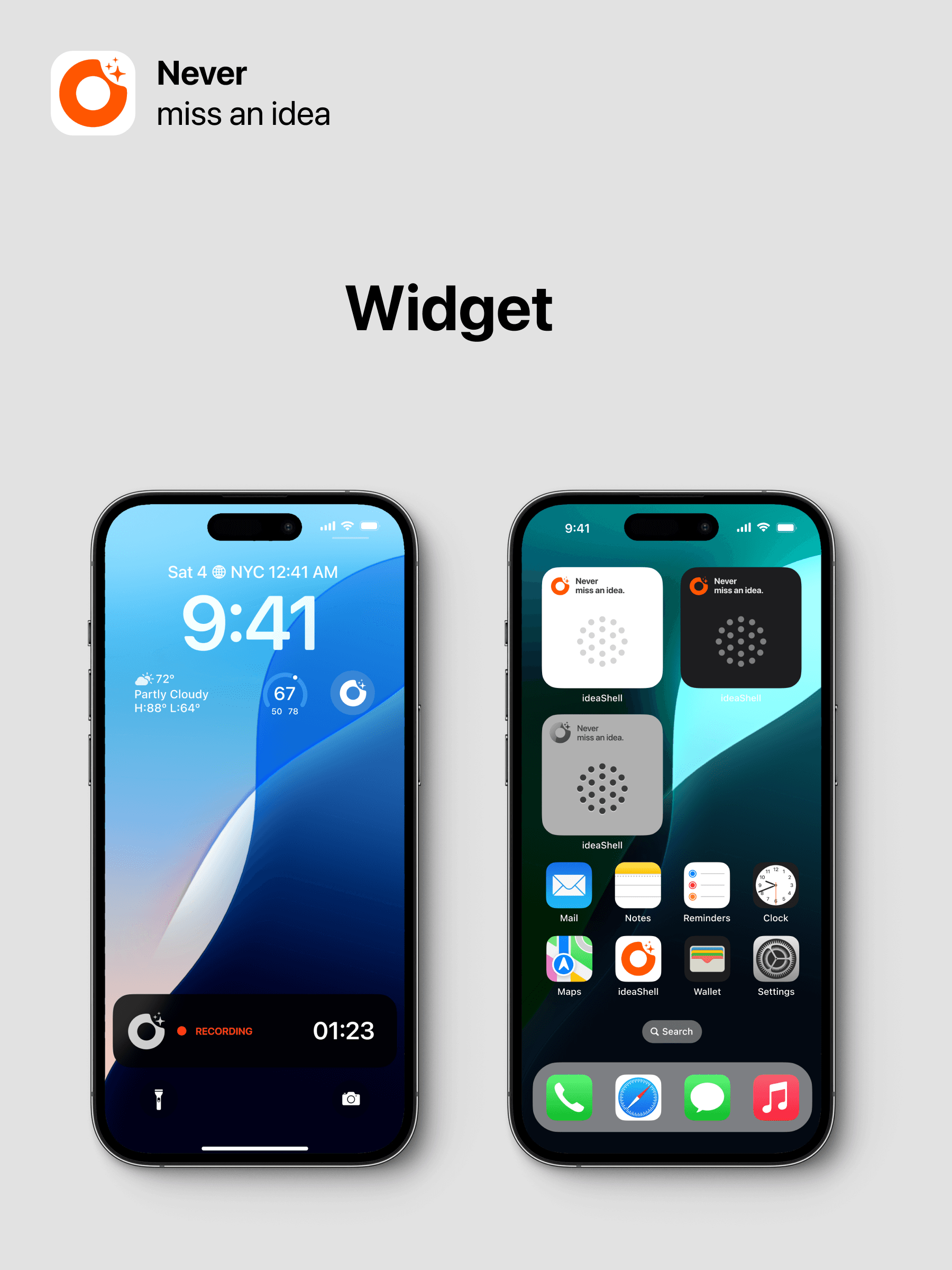
Currently, three widgets have been designed: two desktop widgets and one lock screen widget. You can add them by long-pressing on the desktop or lock screen and selecting to add them. Clicking them will directly launch the voice input interface.
Start by Long-Pressing the Icon
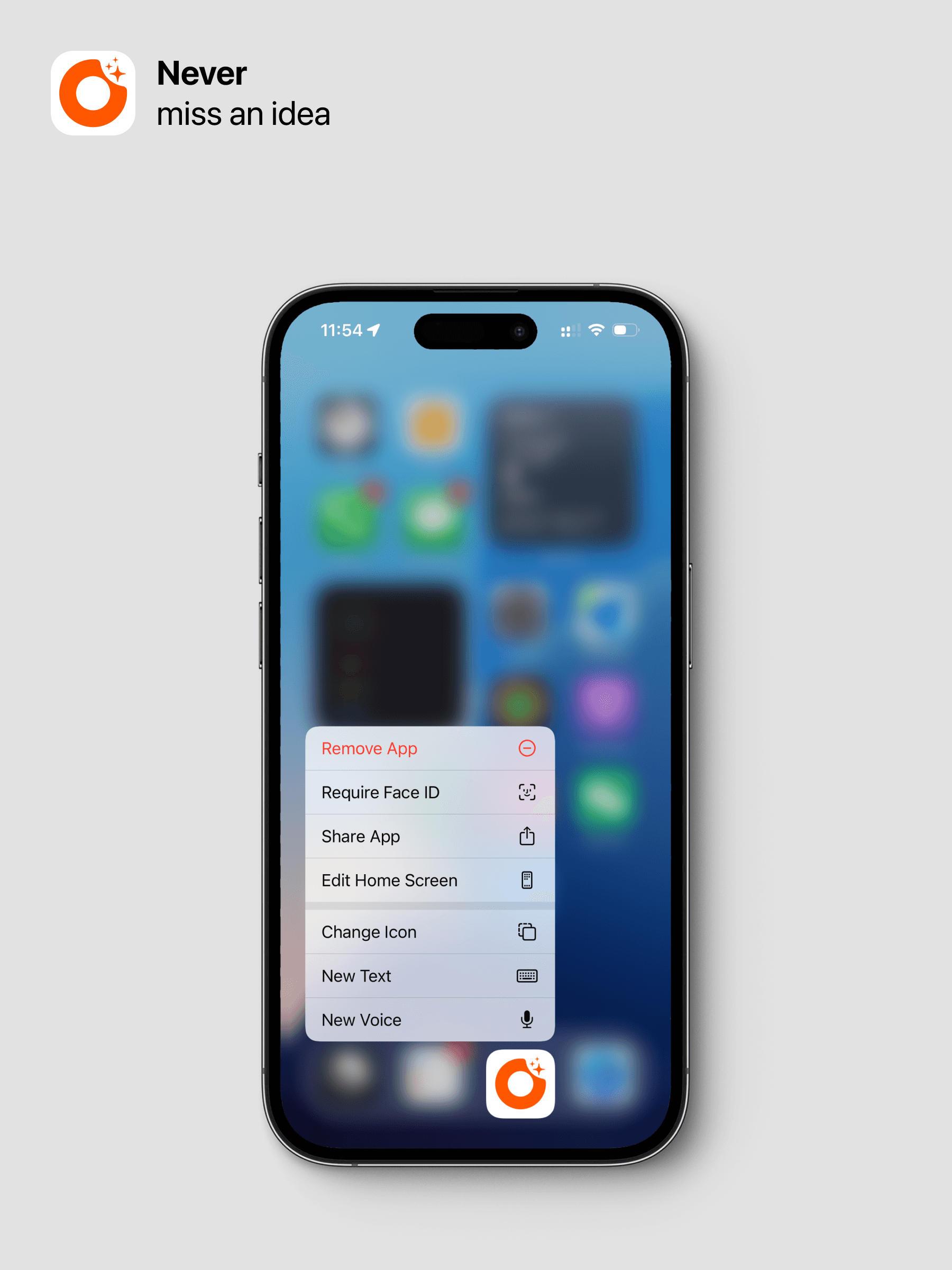
On the desktop, you can long-press the icon to bring up the start menu list, then choose “New Voice” or “New Text” to record.
Start via Siri
We have integrated Apple Siri’s start method. You just need to say the command to start:
“Hey Siri, use ideaShell to record an idea”
“Hey Siri, open ideaShell to record a new idea”
The system will automatically launch ideaShell for voice recording. Also, if your phone is locked, you may need to unlock it first.
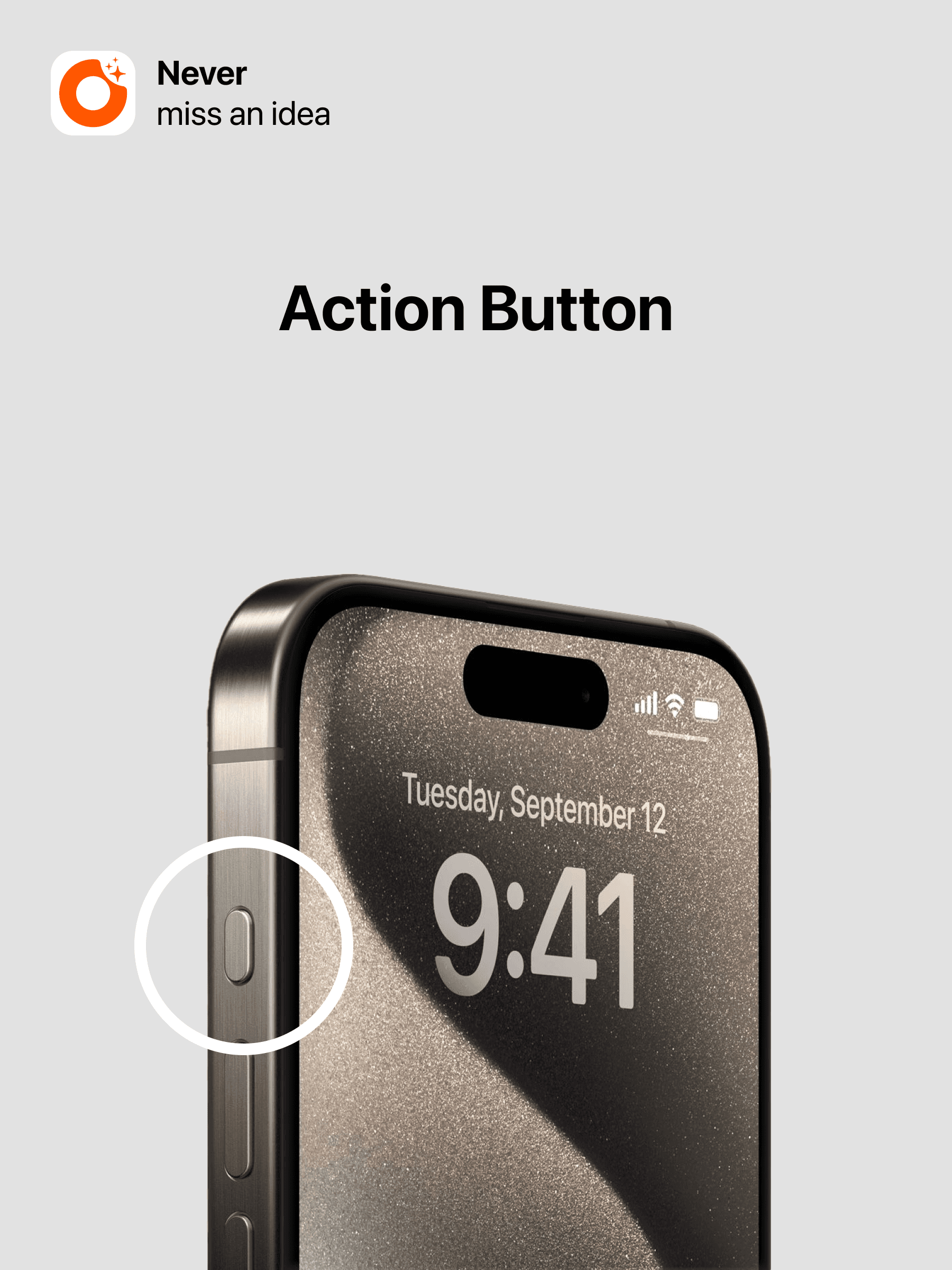
Start via Action Button
For iPhone 15 Pro series and newer models, you can set the action button to start input. You can achieve quick voice or text input by long-pressing the action button. Specific operations can be found in the App under Settings - Quick Recording - Action Button with tutorials and guidance.
Start via Shortcuts
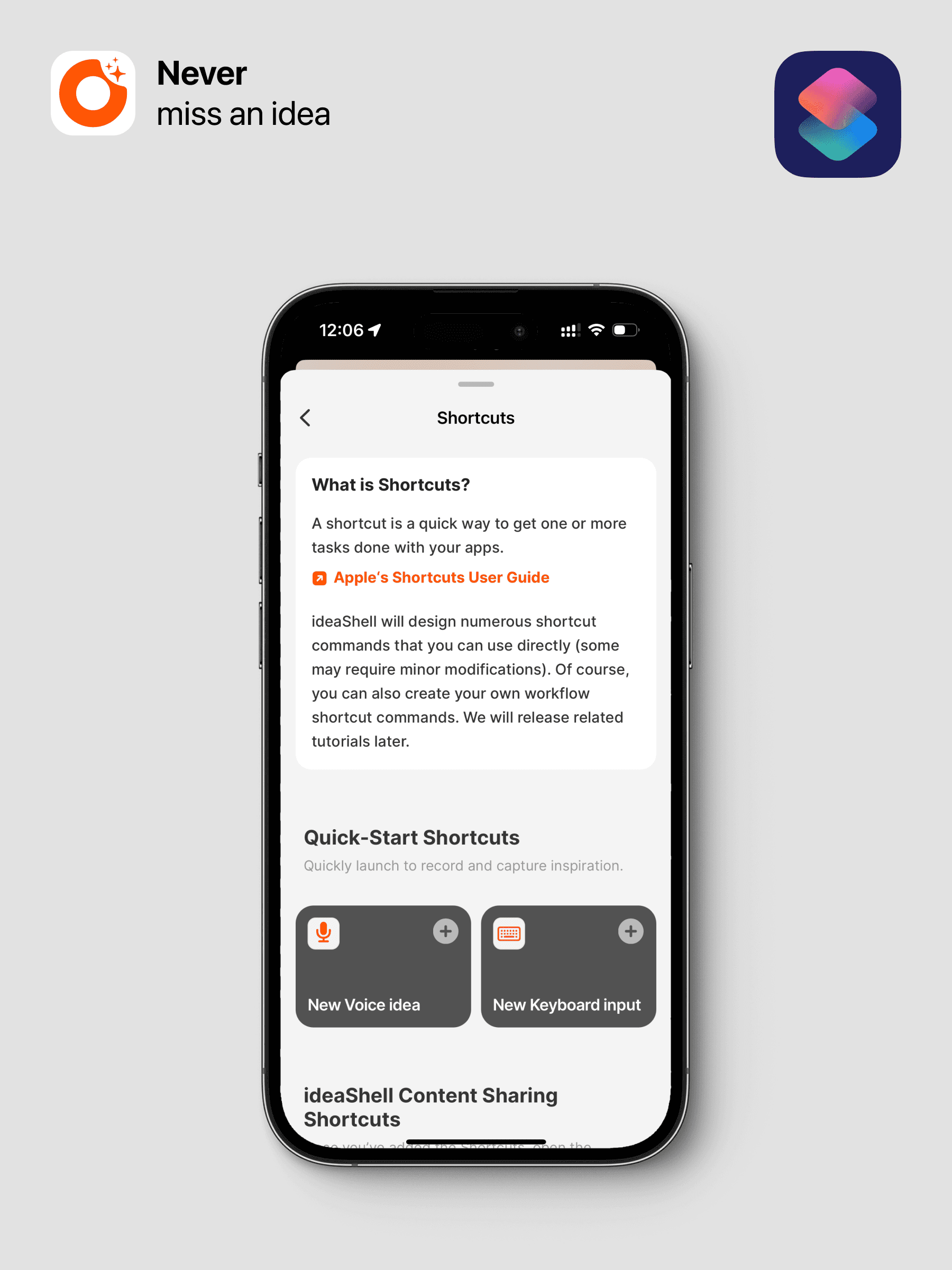
Shortcuts is one of the fastest and most efficient ways in the iOS system. ideaShell has set up two quick input methods for voice and text in the App. You can customize them in Shortcuts or choose your preferred recording method in the App under Settings - Quick Recording - Shortcuts.
Additionally, combined with some system settings, you can make recording even more convenient with Shortcuts. For example, you can set: iPhone system settings - Accessibility - Back Tap - select ideaShell shortcut to enable double-tap on the back of your iPhone to start recording. Custom Siri wake-up commands are also supported.