Apple Watch
Update Date: 02/12/2026
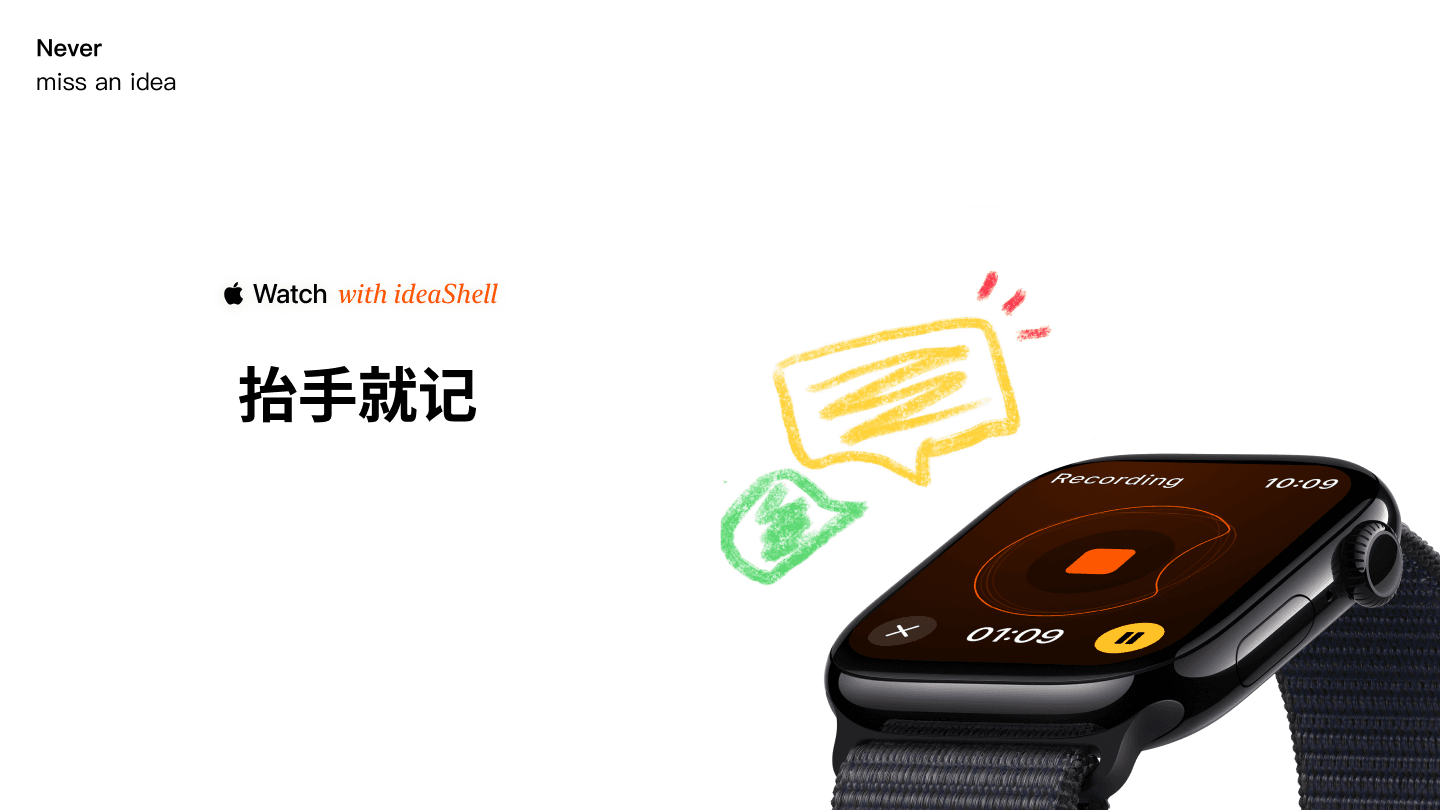
Use ideaShell voice recording on your Apple Watch to capture ideas anytime, anywhere—just raise your wrist to record. It automatically syncs with your iPhone and transcribes, so you never miss an idea!
*Supports watchOS 9.0 and above
Table of Contents:
-
Installing the App and Quick Recording
-
Advanced Feature 1: Using Double Tap on Watch
-
Advanced Feature 2: Gesture Control via Accessibility
-
Advanced Feature 3: Start watch recording on Apple Watch Ultra via the Action button
-
What to do if it doesn’t sync the first time?
Installing the App and Quick Recording
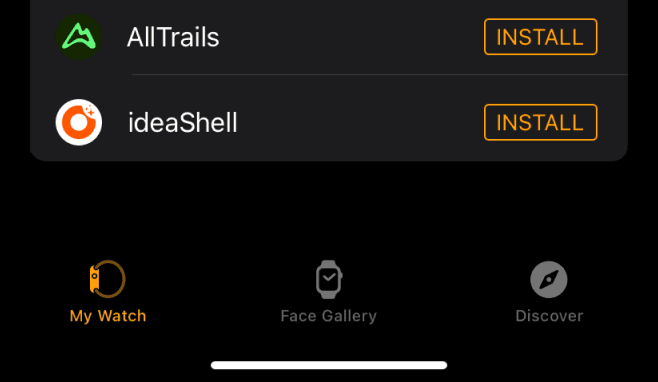
Open the Watch app on your iPhone, then find “ideaShell” under My Watch and tap Install. Wait a moment for the installation to complete.
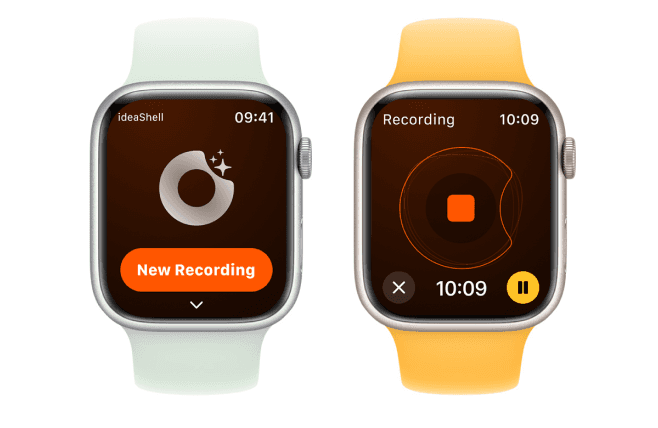
● Open the app directly to record (tap the orange square in the middle to stop recording)
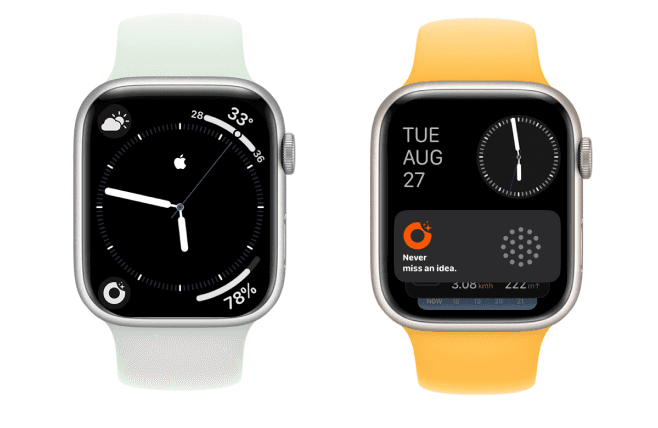
● Use the quick launch button on the watch face or the Smart Stack widget (supported on watchOS 10 and above)
Advanced Feature 1: Using Double Tap on Watch
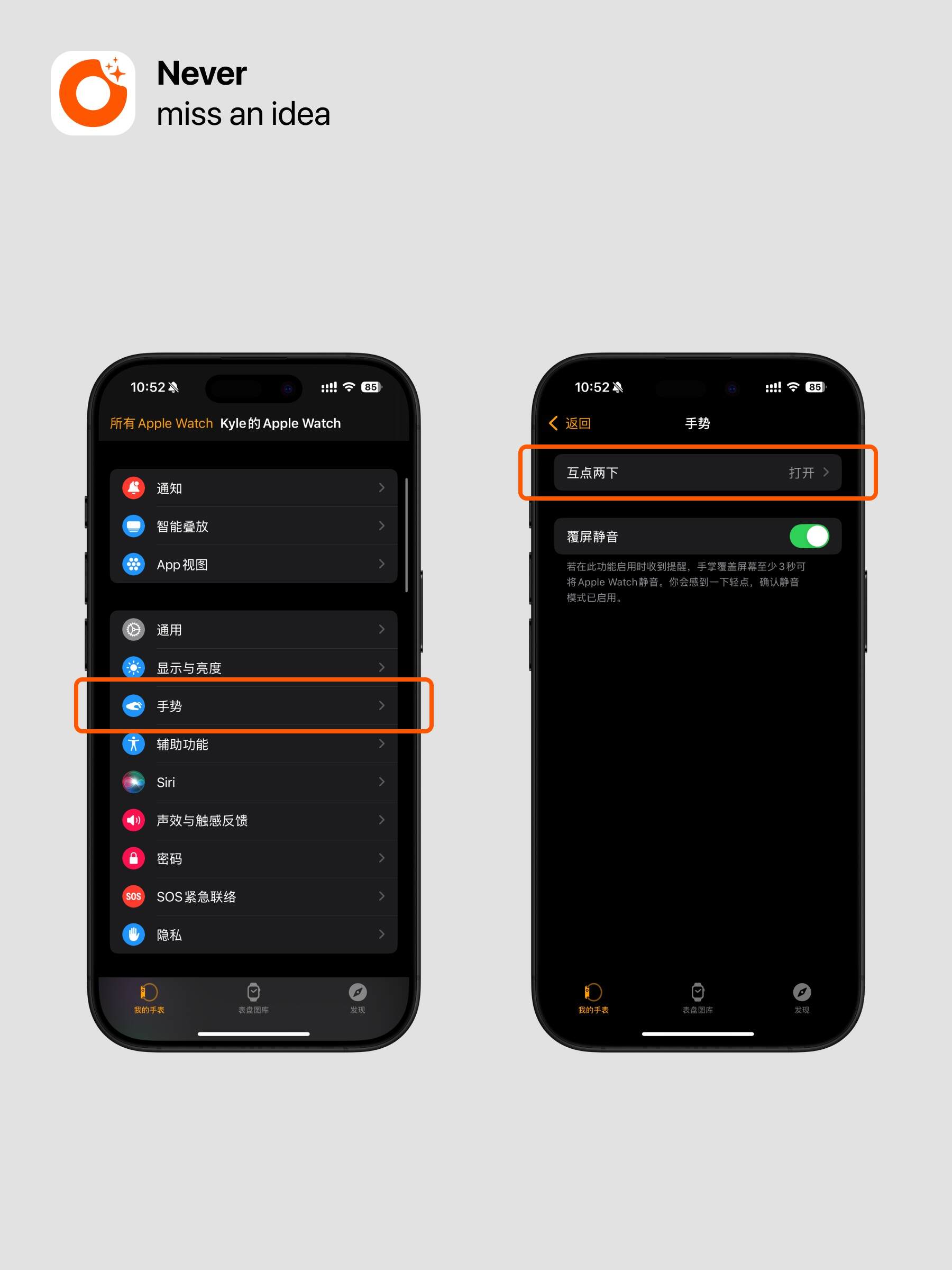
Go to the Watch app on your phone, select: General - Gestures - Double Tap, and enable this option.
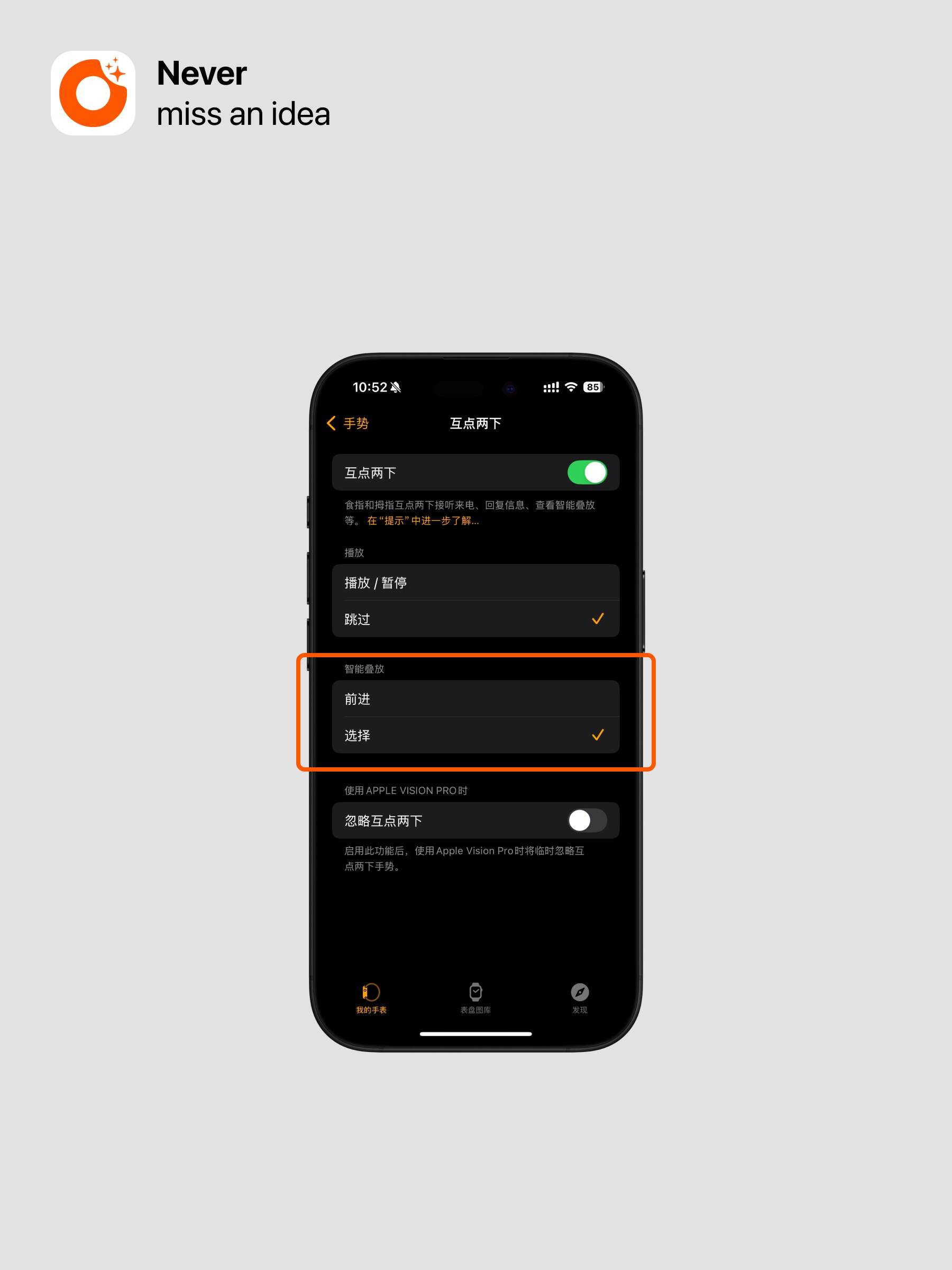
Then set the “Select” option in the Smart Stack settings.
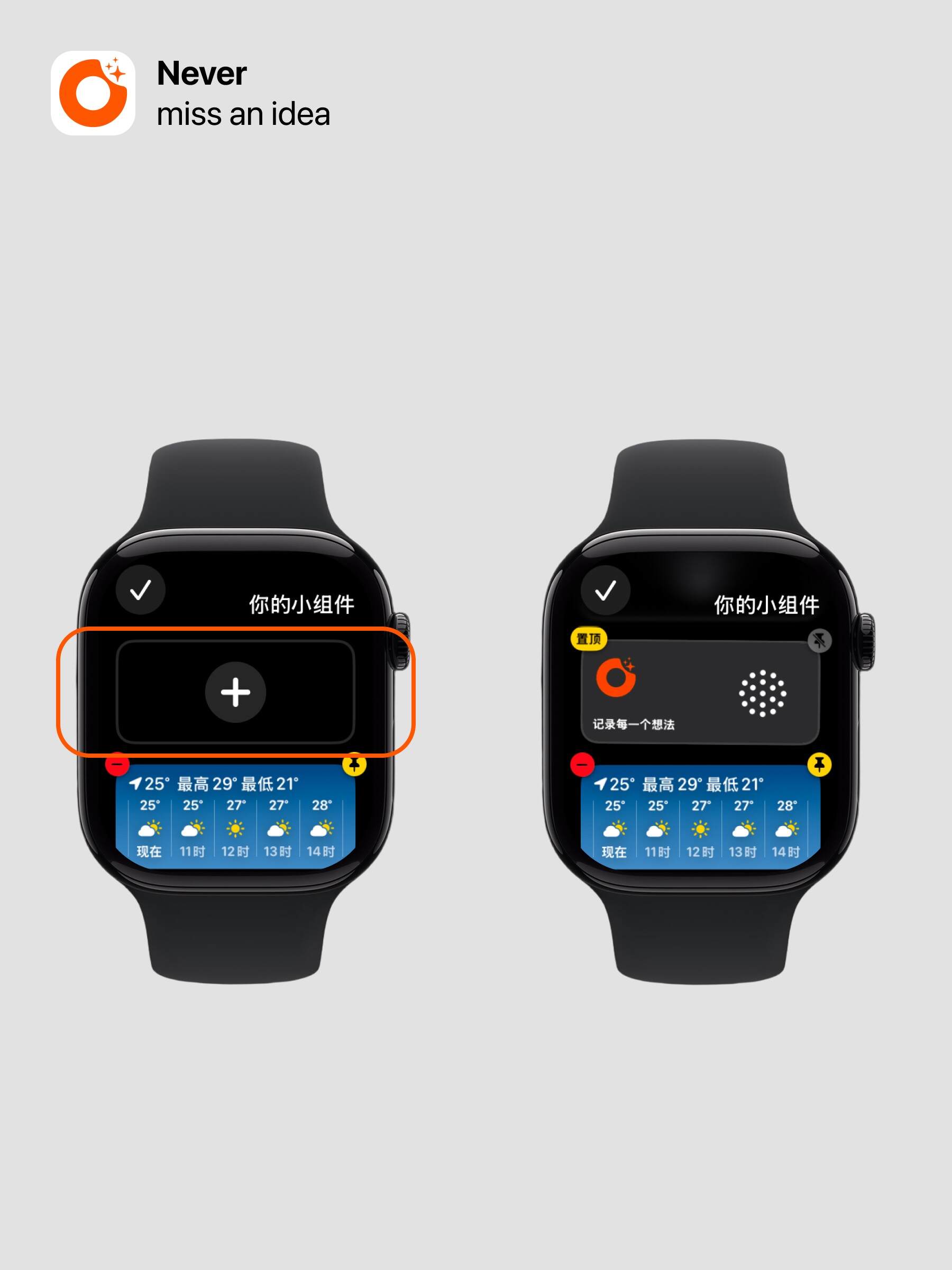
On Apple Watch, swipe up from the bottom of the watch face, long press the Smart Stack card, then add and pin the ideaShell Smart Stack card to the top.
Tip: The double finger double tap feature is only available on S9 and above, and Ultra 2nd generation.
Advanced Feature 2: Gesture Control via Accessibility
For models without the double tap feature, you can use this method to enable gesture control.
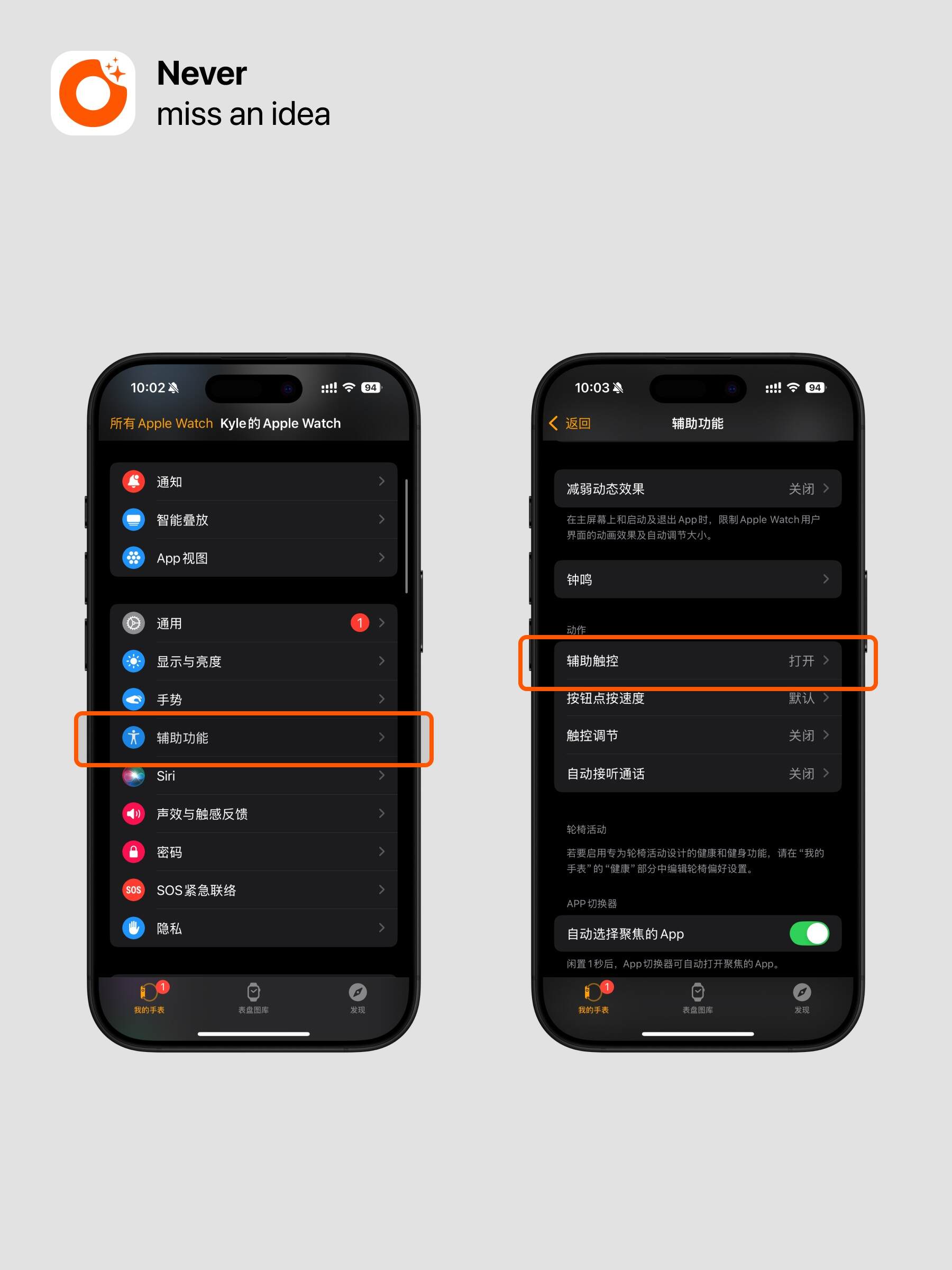
Step 1: Enable and set up gestures
-
Tap Accessibility
-
Tap AssistiveTouch and turn it on
-
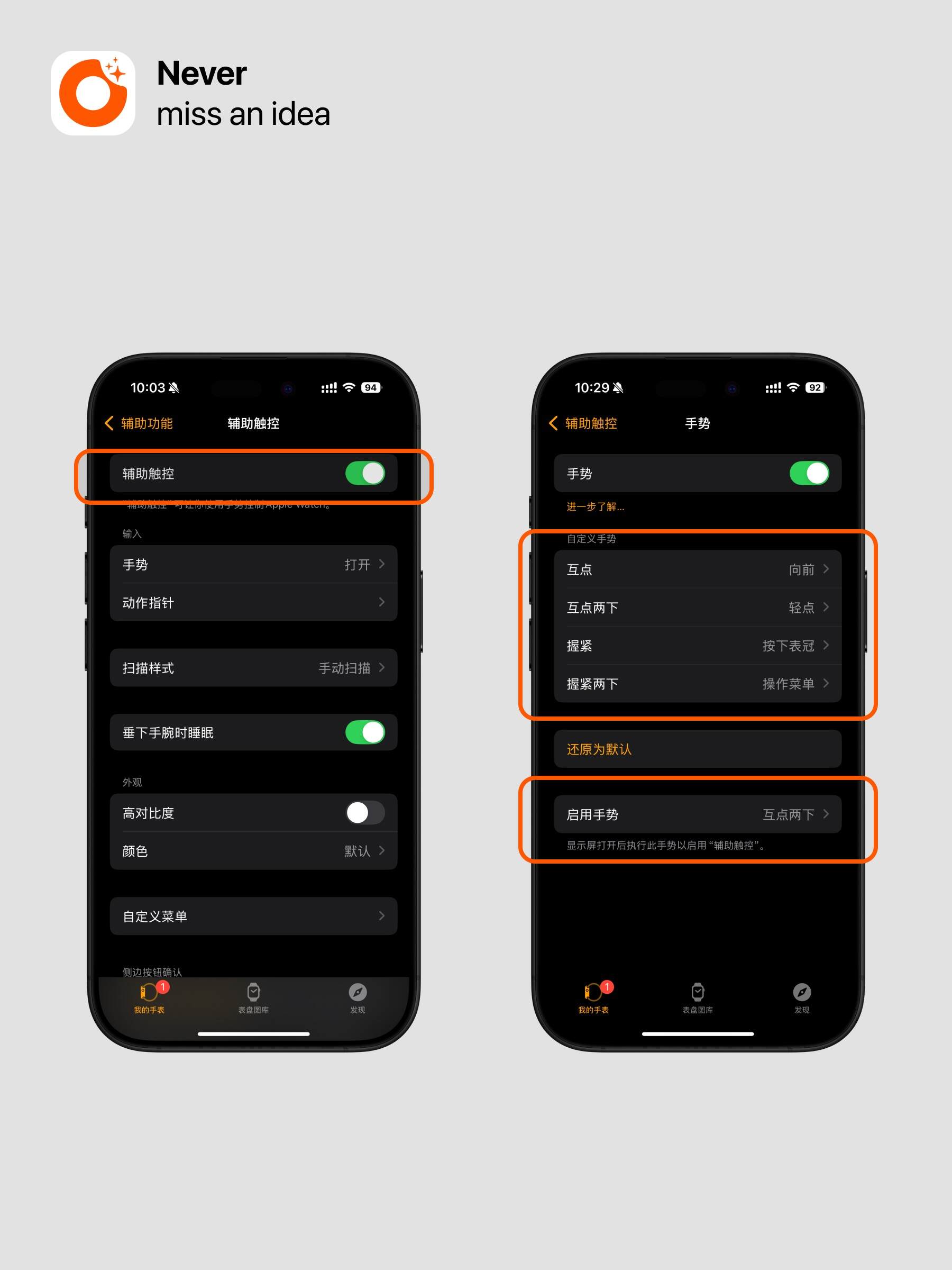
Tap Gestures and enable it
-
Tap Launch Gesture, and set it to “Double Tap” to launch AssistiveTouch (you can also set it to “None,” so raising your wrist will directly launch AssistiveTouch, which skips a step but may cause accidental triggers)
Step 2: Enable Wake on Wrist Raise
-
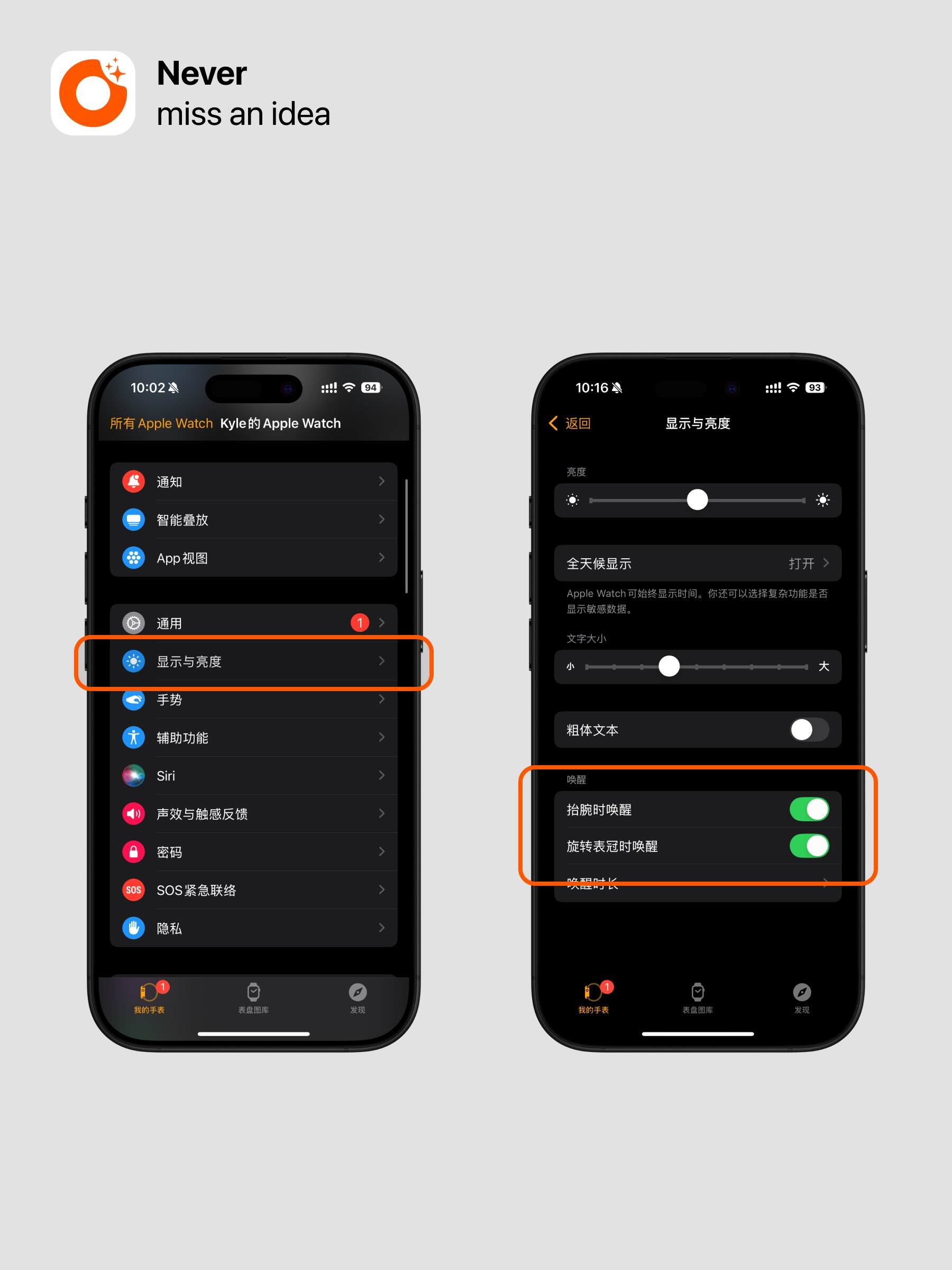
Tap Display & Brightness
-
Tap Wake on Wrist Raise and turn it on
Step 3: Watch Face Setup
Advanced Feature 3: Start watch recording on Apple Watch Ultra via the Action button
*This feature is only supported on Apple Watch Ultra.
Step 1: Add a Shortcut
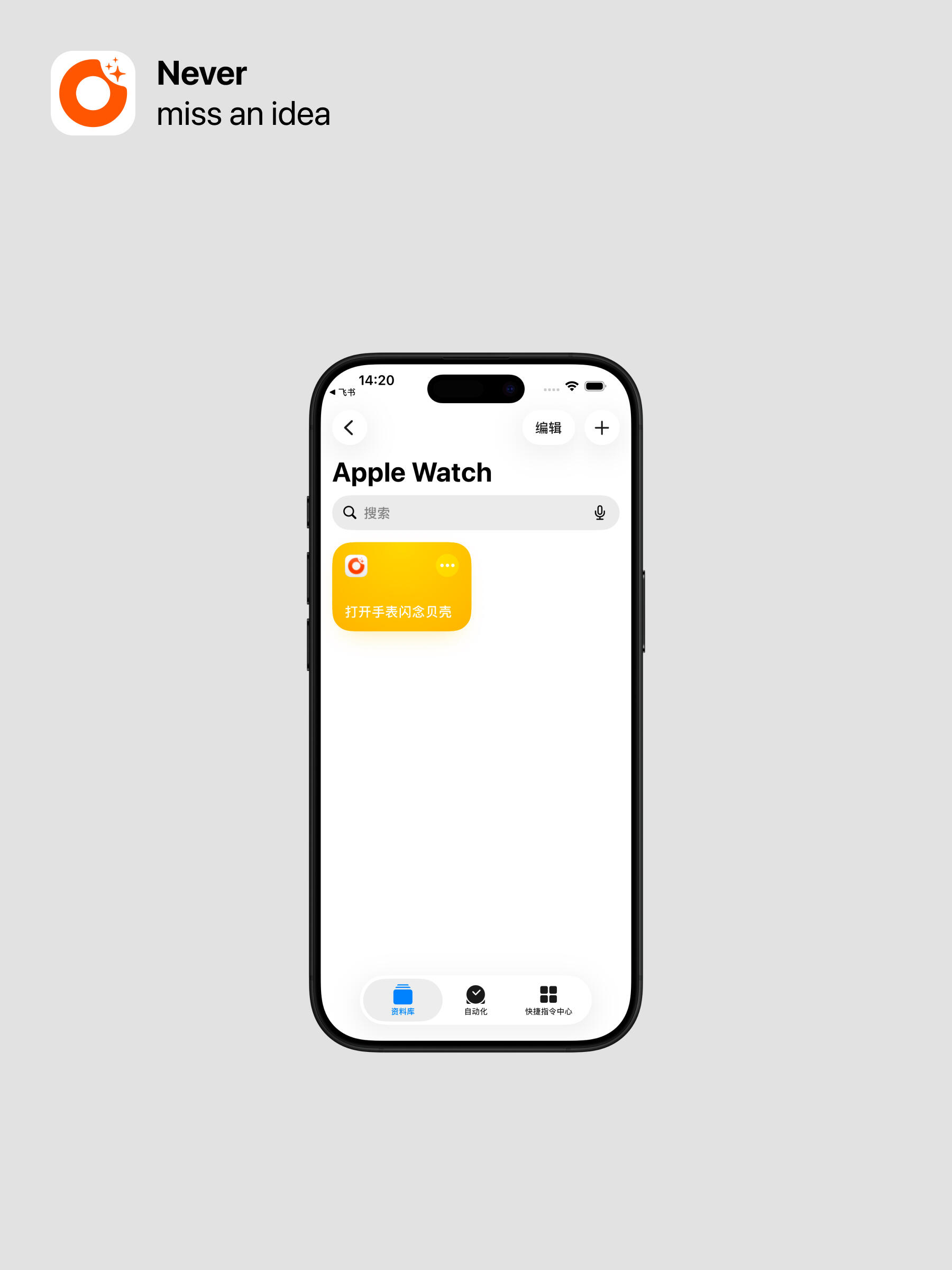
- Tap here to add the shortcut
- Once added, you’ll see the shortcut shown in the image below
Step 2: Set up the Shortcut
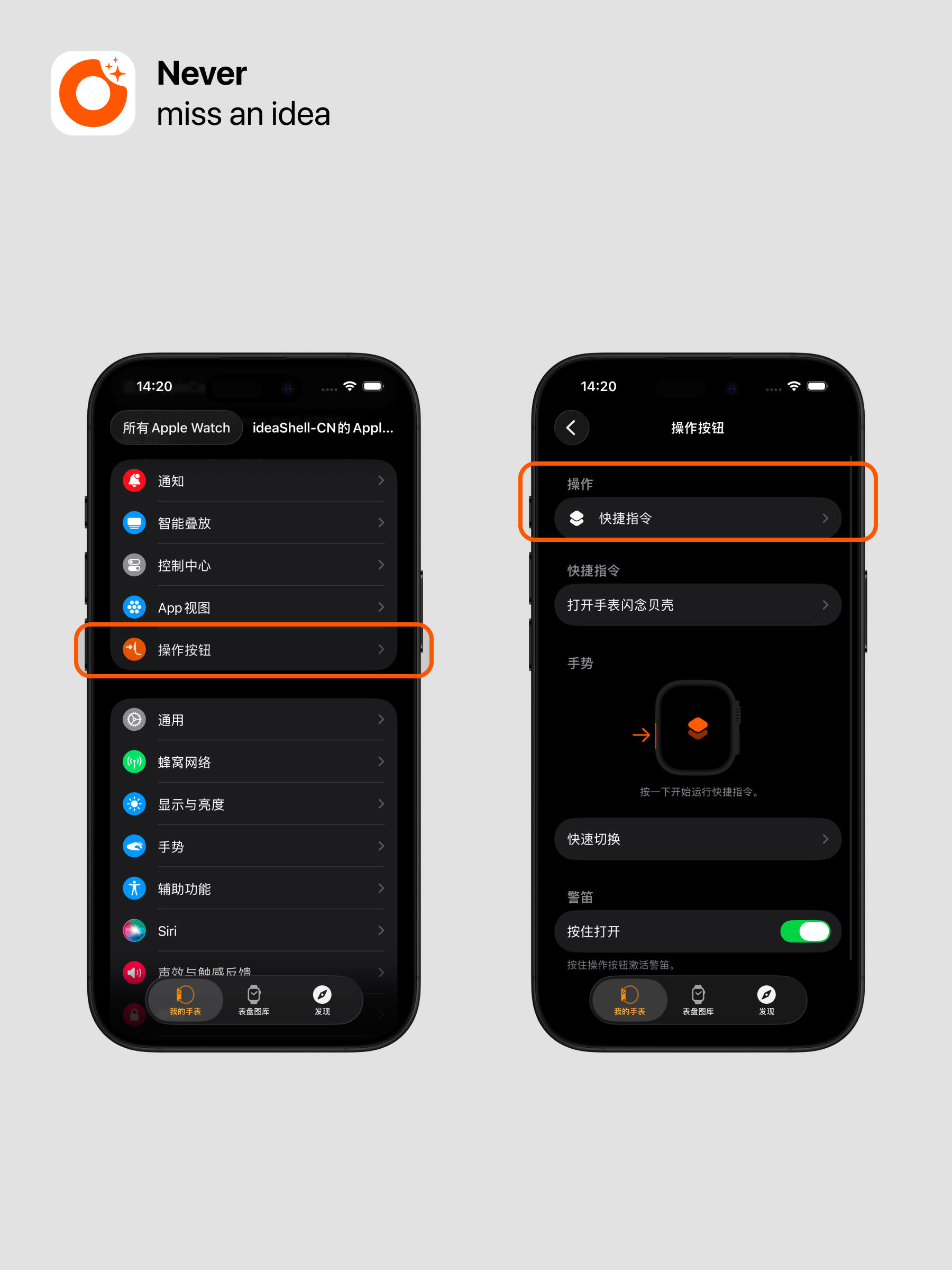
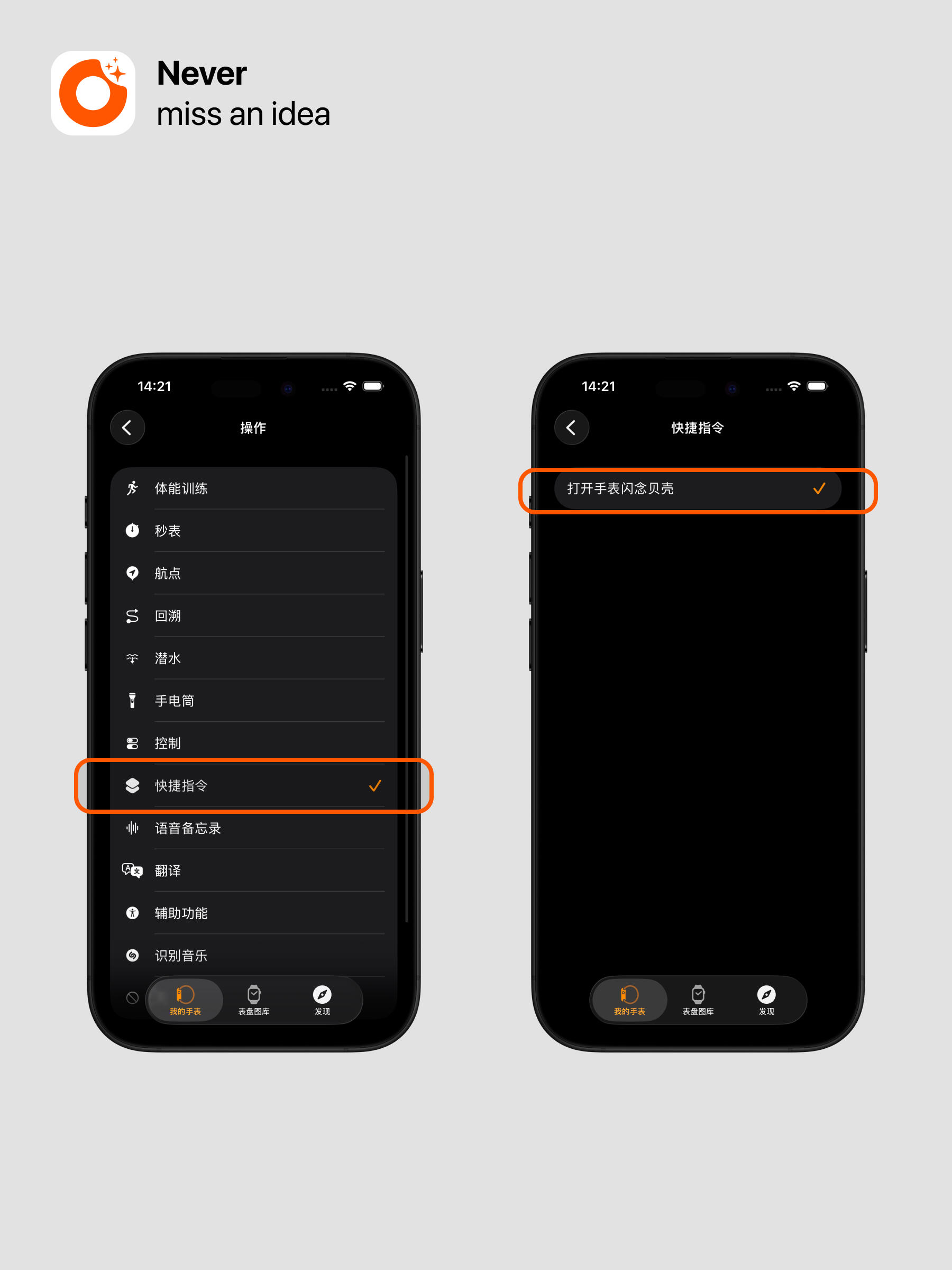
- On your iPhone, open the “Watch” app and go to: Action Button - Choose Action - Shortcut
- On the Action Button screen, set the shortcut and select: Open ideaShell on Watch
Step 3: Enable Auto Record on Launch (on Watch)
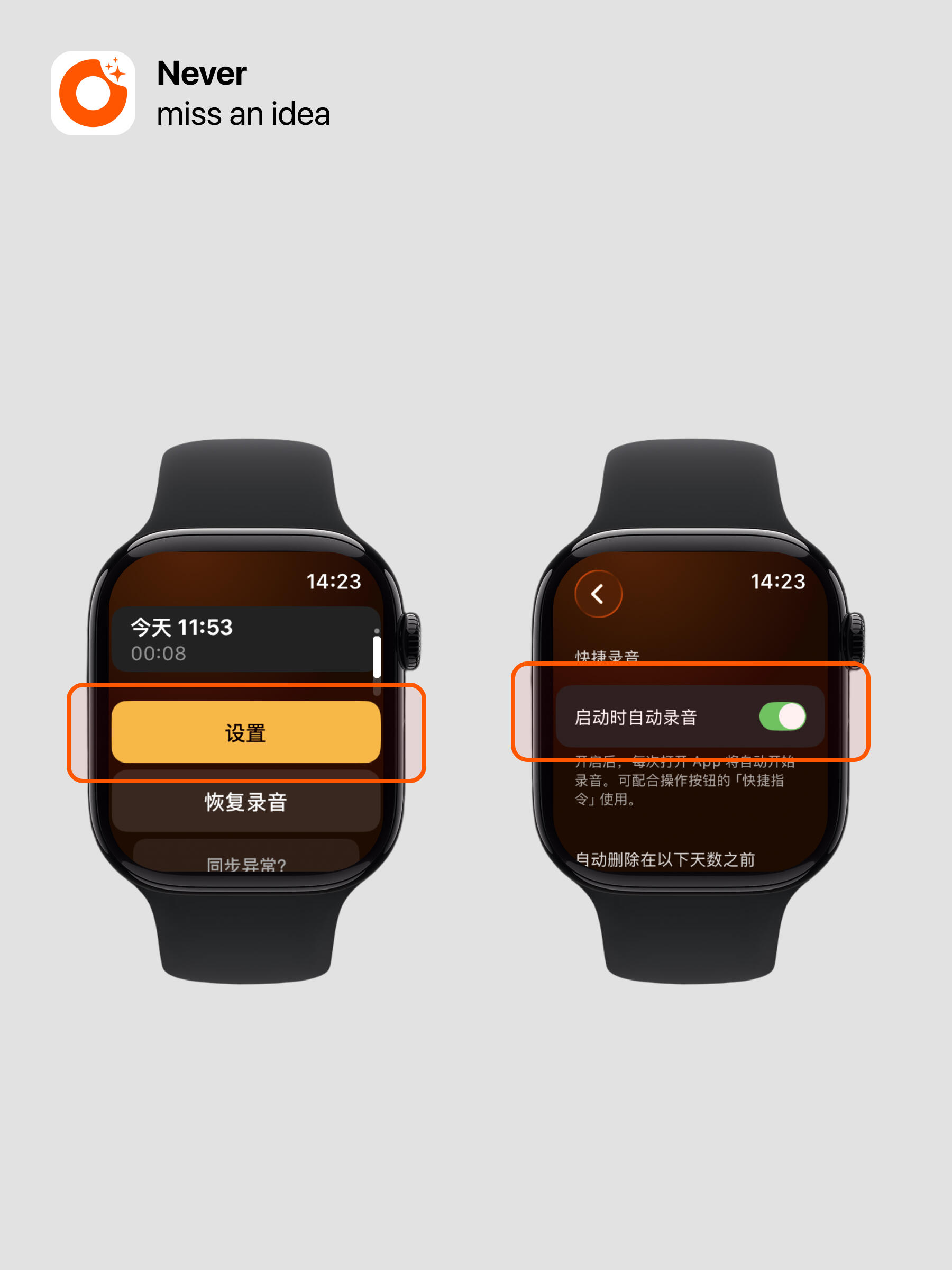
- On your watch, open the ideaShell app, swipe up on the home screen to find the setting entry, then tap: Settings - Enable Auto Record on Launch
What to do if it doesn’t sync the first time?
If syncing fails the first time, try these two methods:
-
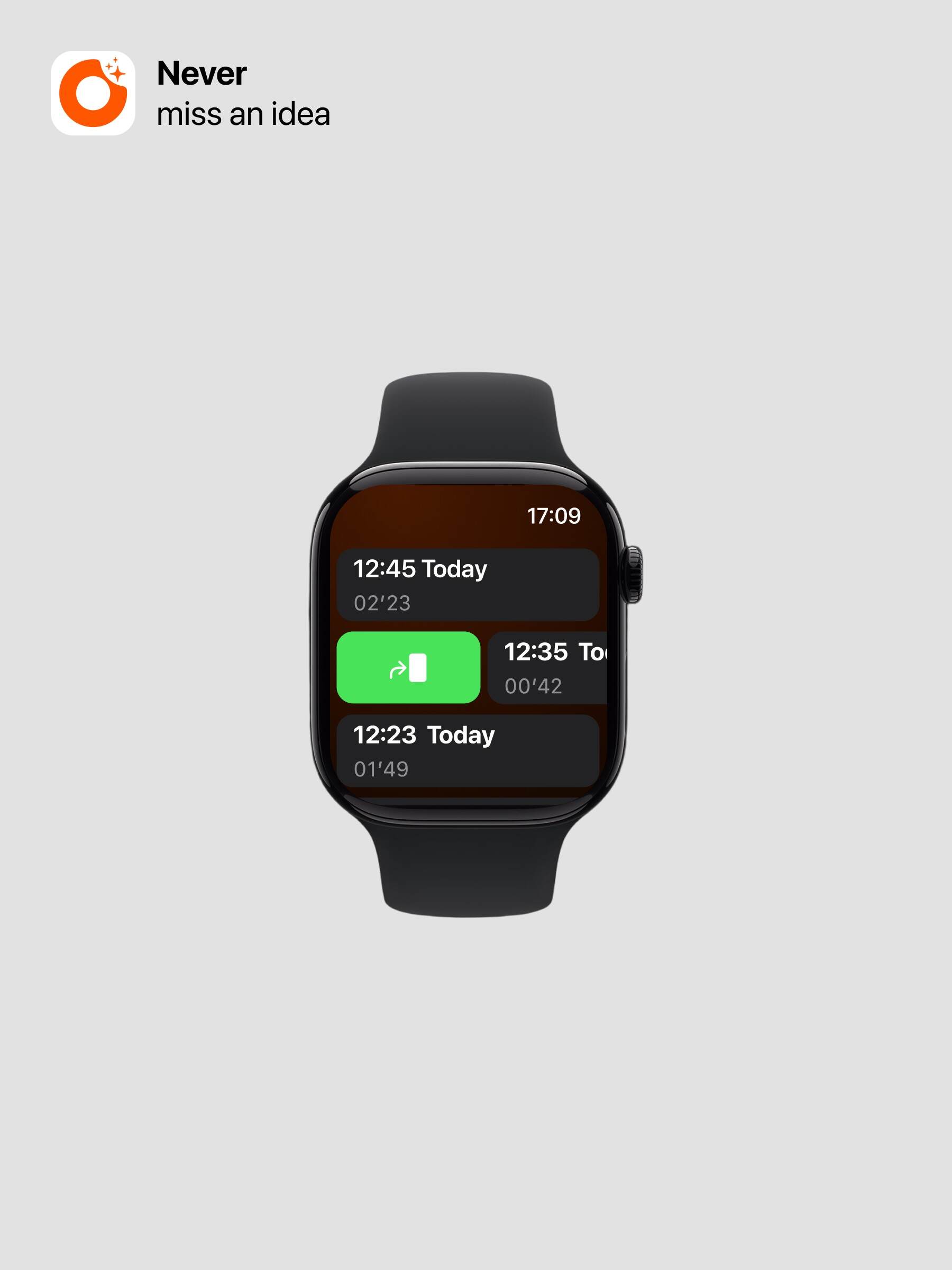
On the watch’s list page, swipe right on a recording, and tap the green button to resend it to your phone.
-
Record a new one and see if it syncs.
Once successful, it will sync automatically from then on.