How to Import and Export Audio?
Update Date: 11/24/2025
1. Importing Audio
We not only support recording audio directly but also support importing audio. You can import audio from your voice or videos, with the following three methods:
-
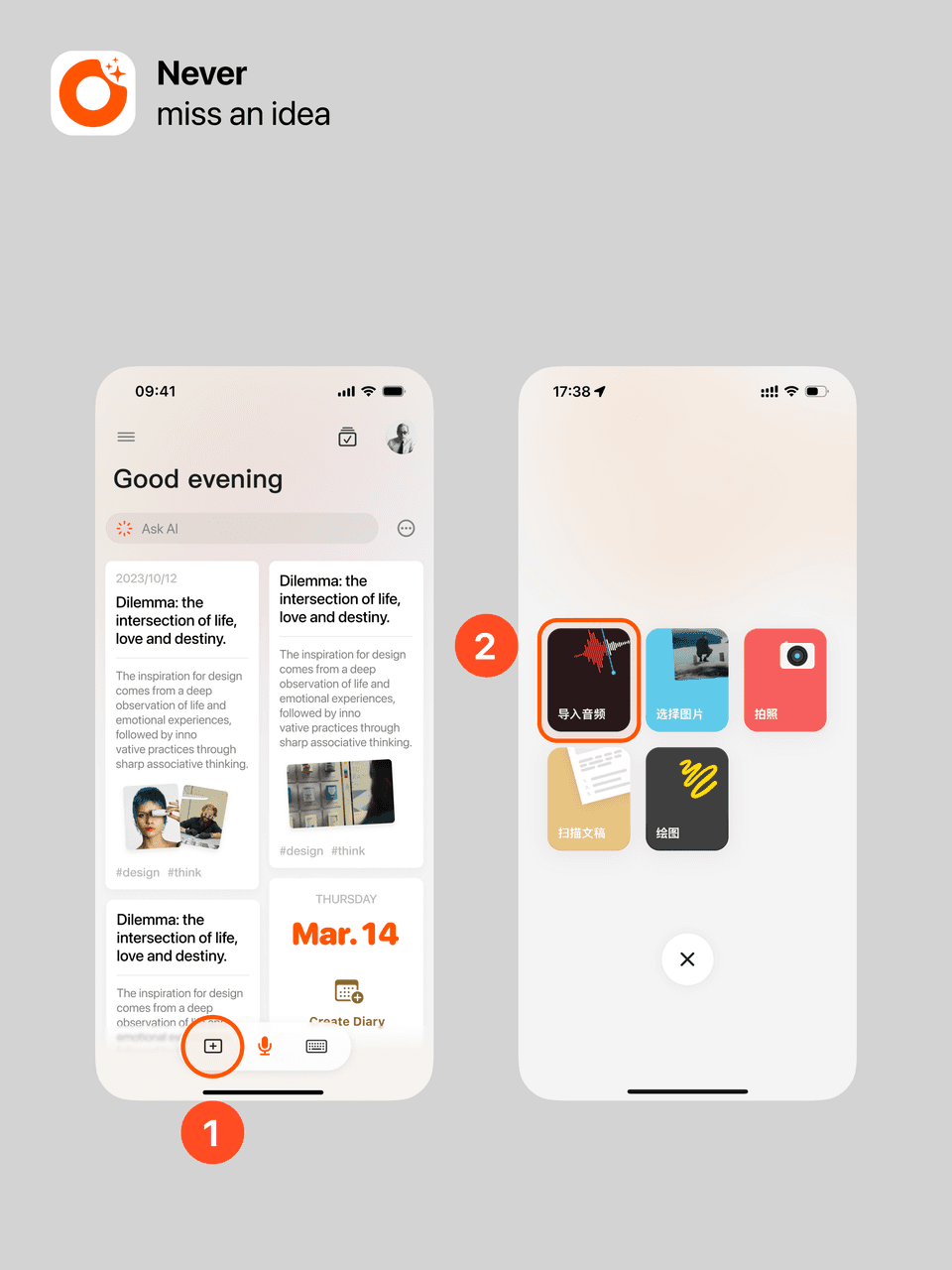
First, tap the plus sign on the homepage to select import audio, then import audio or video from your album or files (videos will automatically extract audio).
-
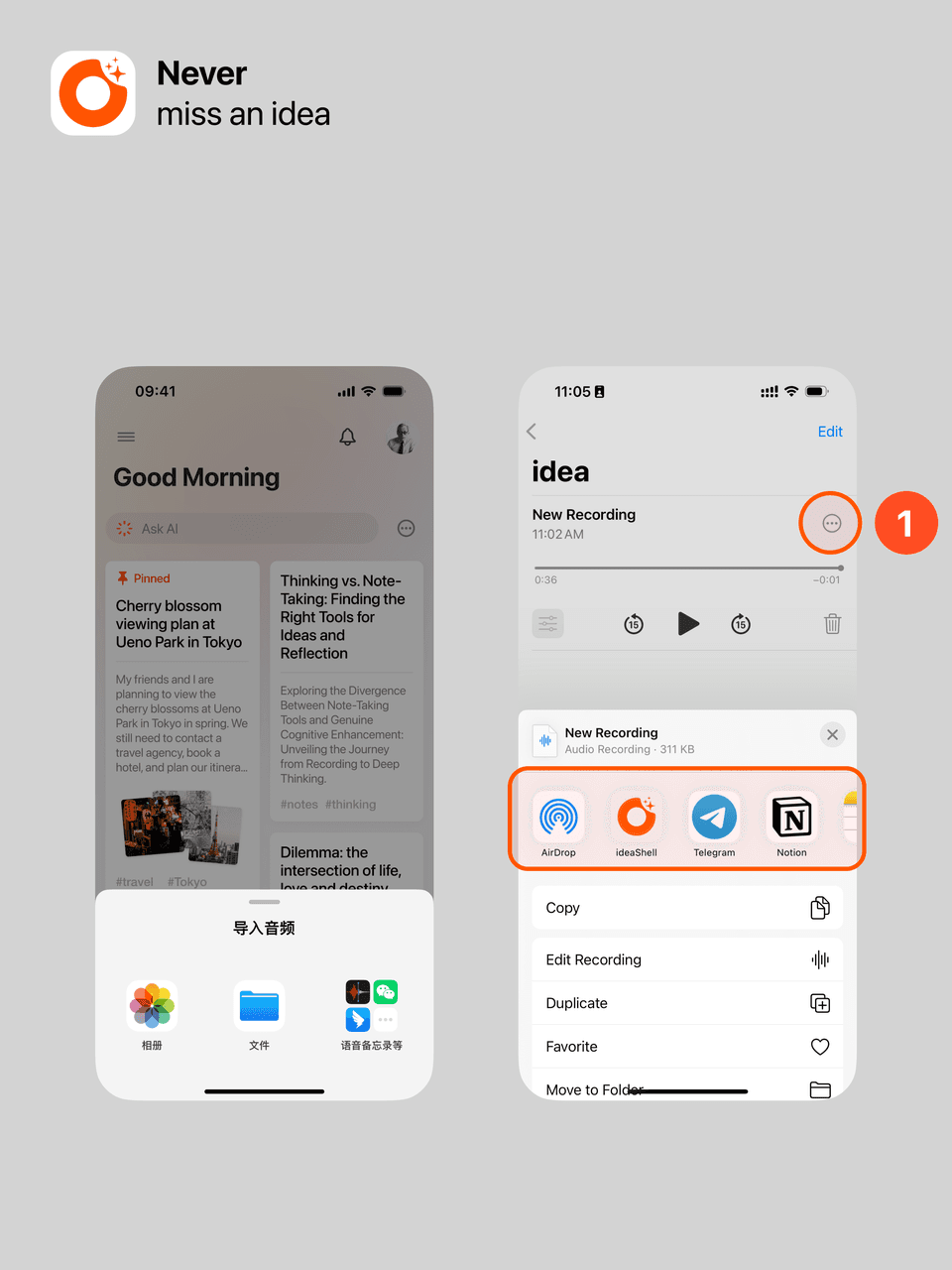
Second, import from third-party apps. For third-party app import, just open the app, then choose share or open with another app.
Special reminder: Supported audio formats include AAC, AIFF, CAF, FLAC, M4A, MP3, MP4, and WAV. Due to some apps not being well designed, the file extension might not match the actual encoding format, which can cause import failure. If you encounter this issue, it’s recommended to use third-party editing software (like Jianying) to edit the audio and export it as a standard mp3 format before trying to import into ideaShell again.
2. Exporting Audio
There are two cases:
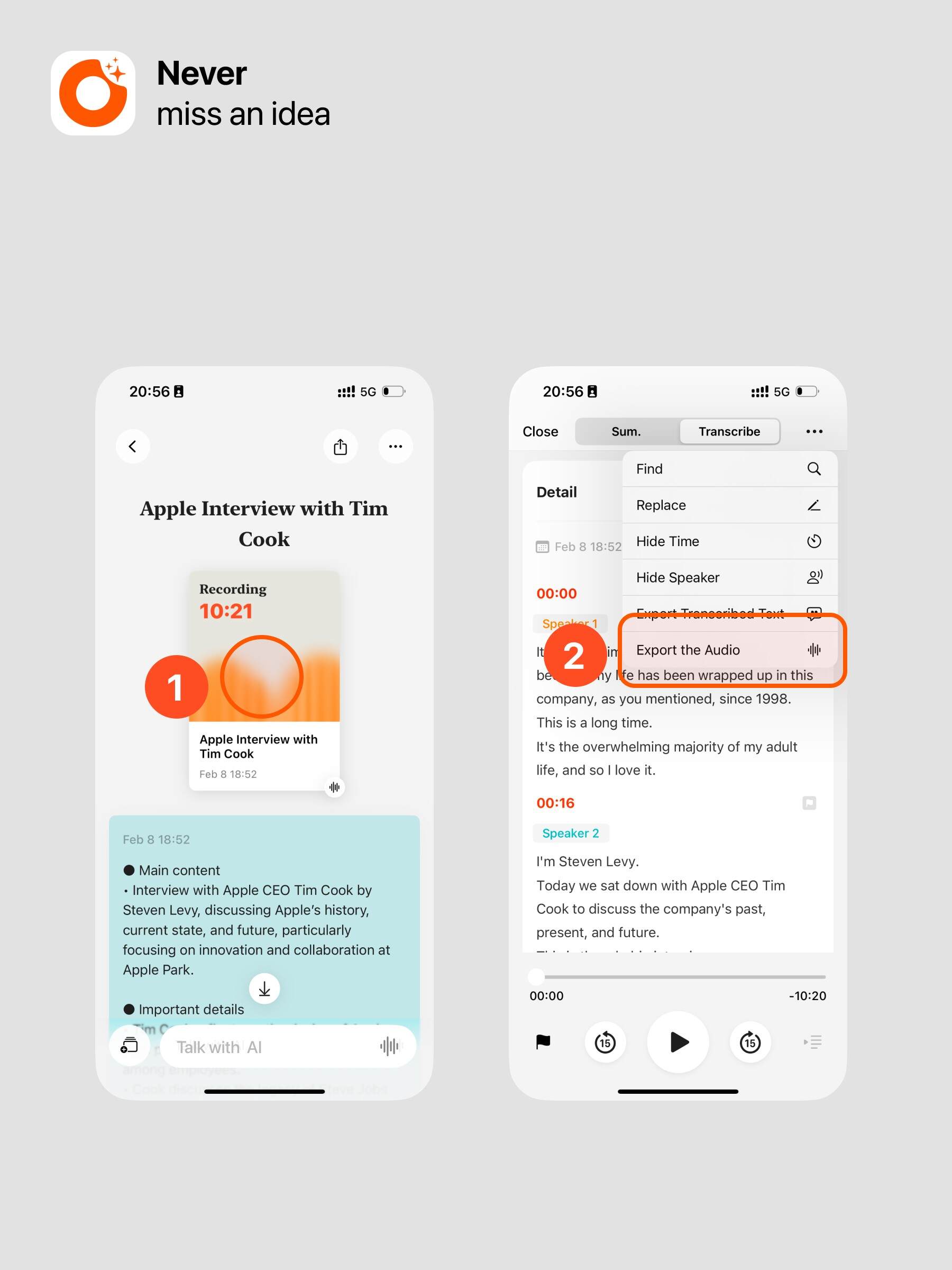
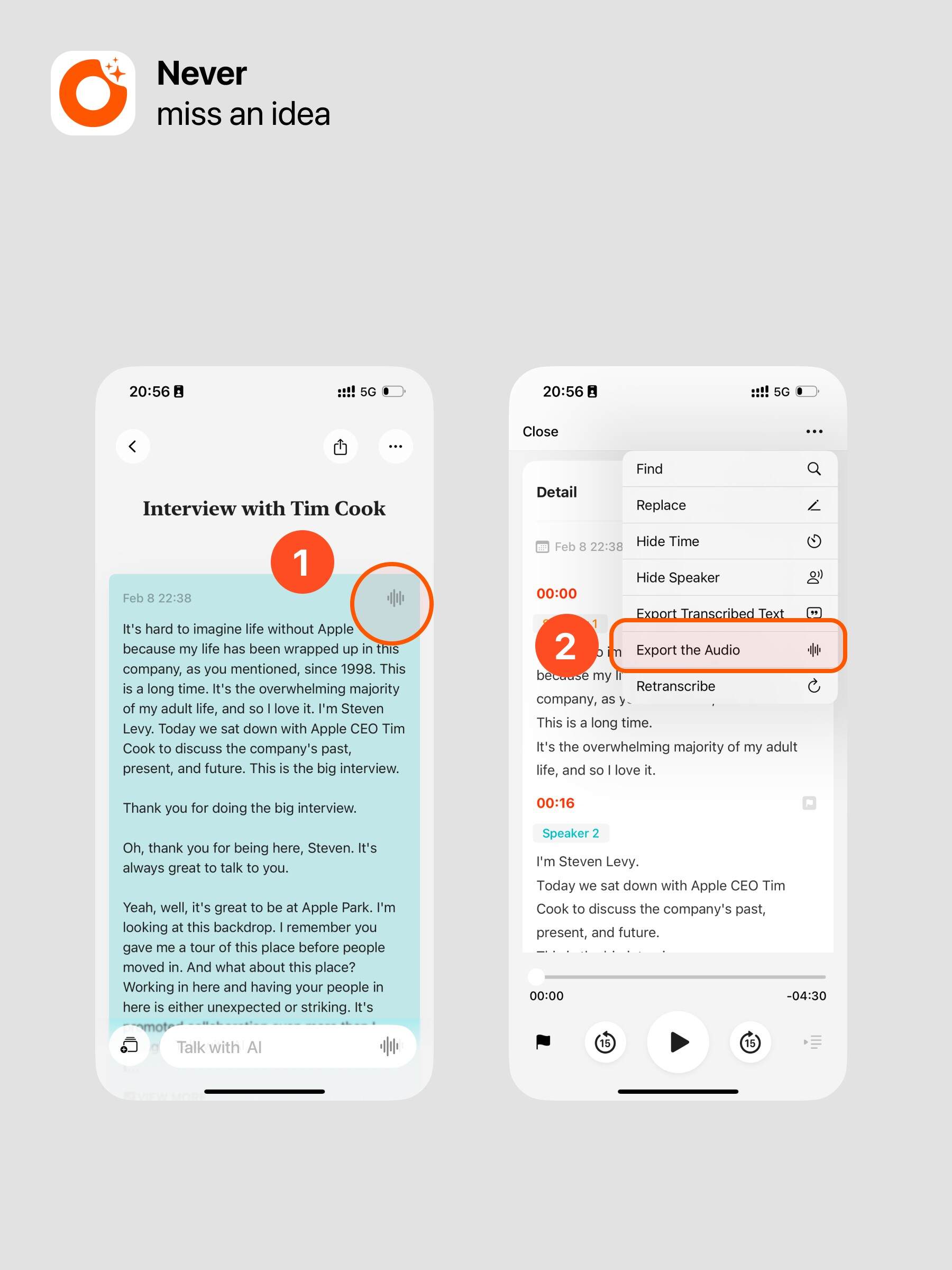
- For content shorter than 10 minutes, tap the button at the top right of the text card to enter the transcription details, then tap More and select Export Audio.
- For content longer than 10 minutes, tap the orange card to enter the transcription details, then tap More and select Export Audio.